.jpg)









Key Takeaways
- The limits of manual setup: Creating a Microsoft account takes a few clicks, but assigning licenses, Teams groups, software, and security rules (MFA) eats up hours in practice and is highly error-prone.
- The classic Microsoft methods: Approaches like CSV import or PowerShell scripts quickly hit their limits. They are either pure manual work or require deep IT expertise that SMBs often lack.
- The smart bridge to your HR tool: The most efficient setup is one where the M365 account is created automatically as soon as HR adds a new team member in the HR system (e.g. Personio or BambooHR).
- Fast, automated onboarding with deeploi: The all-in-one platform connects your HR tool directly to Microsoft 365. The result: the entire IT setup runs fully automatically in the background, so new employees are ready to go from day 1.
Creating and setting up Microsoft 365 accounts for new employees automatically
When new team members come on board, one thing matters most: a smooth first day at work. For that to happen, they need access to their Microsoft 365 account from minute one, including their email inbox, the right license, Microsoft Teams, and all the necessary permissions. In growing companies without an in-house IT department, this task usually lands with HR or office management. What looks like a quick job turns out, in practice, to be a tedious, error-prone routine with countless follow-up steps. In this article, you'll learn how to skip that routine and create Microsoft 365 accounts automatically.
Why manual account creation in M365 quickly becomes a burden
Creating a new Microsoft 365 account sounds like a five-click task. In reality, it kicks off a click marathon of 10 to 15 follow-up tasks: you have to find a free license, set up security groups, prepare multi-factor authentication (MFA), assign software, check the mailbox, and activate security policies (Conditional Access).
The problem: these steps are scattered across the admin center, Microsoft Entra ID, license management, and security policies. It's easy to lose track.
In practice, things slip through. Forget the license, and the mailbox expires after a short grace period. If MFA is left open or group permissions don't fit, new employees end up without access on their first day. Incomplete permissions can also lead to security gaps later on.
Three mandatory fields are overlooked especially often:
- UsageLocation: Without this country code, M365 simply won't let you assign a license.
- UPN (UserPrincipalName / username): If a name is duplicated or inconsistent, the process just aborts without a clear error message.
- Password profile: If you don't activate the mandatory password change here, the insecure starting password remains valid permanently.
The 3 realistic ways to create accounts automatically
For small and medium-sized businesses (SMBs) in the DACH region, there are three typical methods to create Microsoft 365 accounts automatically. The following overview shows you at a glance which method fits which scenario, before we get into the details.
Method 1: CSV import via the Microsoft 365 admin center
The CSV import through Microsoft's own 365 admin center typically follows four steps:
- You download a ready-made CSV spreadsheet template from the admin center.
- You fill in the key mandatory fields for the new team members (username or UPN, display name, and usage location).
- You upload the completed file and wait for Microsoft to validate the data.
- Right afterwards, you assign the appropriate licenses to the new accounts.
In practice, however, this method quickly reaches its limits: you can create a maximum of 249 users at once per file. On top of that, assigning department groups, managers, or software packages still doesn't happen automatically. And there's a real security risk at the end: the automatically generated starting passwords land unencrypted, in plain text, in the results file.
Who this works for: This method makes sense if you only rarely and irregularly need to create a batch of 5 to 50 new employees at once and don't need a permanent onboarding setup in your day-to-day.
Method 2: PowerShell with the Microsoft Graph SDK
With this method, nobody clicks accounts together by hand anymore. Instead, an IT professional writes a small script, essentially a set of instructions that Microsoft 365 works through on its own. The script creates the accounts, assigns licenses, and adds users to groups, all for many employees at once. Microsoft provides a dedicated tool for this: the Microsoft Graph PowerShell SDK.
Good to know: the older tools called MSOnline and AzureAD have been permanently retired by Microsoft. Some tutorials online still use these old building blocks, which often leads to errors in practice.
The catch with these scripts: they stubbornly do exactly what the code says and won't raise an alarm on their own when something goes wrong. Small typos often only surface days later, when the new colleague can't work on her first day. Three points are especially error-prone in practice:
- Missing country code: If the script skips this field, Microsoft 365 rejects the later license assignment, often with no error message in the script at all.
- Duplicate usernames: If a name already exists, the process fails silently. The account isn't created, and nobody notices in time.
- Broad access rights: For the script to work, it needs full write access to every account in the company. These rights belong in a tightly secured, dedicated service account and should never run through an employee's personal login.
Who this works for: This method makes sense for companies with their own IT department that can write, monitor, and continuously maintain such scripts. That's typically the case from around 100 employees with regular onboardings.
Method 3: HR-triggered automation via HR systems
With HR-triggered automation, the entire M365 account creation is triggered directly from your existing HR system. As soon as you create an entry for a new team member in Personio, BambooHR, Factorial, or another HRIS, the entire setup chain starts automatically in the background.
Creating the account in Entra ID, assigning the license, granting the right permissions, and installing the matching software package all run without manual work. Multi-factor authentication applies through one central policy that covers all accounts, instead of being set up person by person.
Unlike methods 1 and 2, nobody has to maintain CSV spreadsheets by hand or look after complex IT scripts. New employees are fully equipped on day one. And when someone leaves, the same system handles a clean offboarding, including automatic license removal and the secure handover of data.
Good to know: Microsoft does offer this kind of HR-triggered provisioning itself through its own Microsoft Entra service, but these ready-made Microsoft connectors come with a catch: they are built almost exclusively for huge enterprise systems (like Workday or SAP SuccessFactors). For the HR tools that are standard at SMBs in the DACH region (like Personio or BambooHR), Microsoft offers no ready-made connector. You would have to develop that connection yourself, at considerable IT expense. This is exactly the gap deeploi closes: the platform comes with the ready-built connection between common HR systems and Microsoft 365, without you having to write a single line of code.
Who this works for: This method is the ideal fit for SMBs without a large in-house IT department, or with a team that's already stretched thin (typically between 30 and 300+ employees), who want fast, error-free IT onboarding.
{{cta}}
Creating M365 accounts: which approach fits your company?
This overview helps you quickly find the right method for your company, depending on team size and existing IT expertise.
If the chosen method doesn't match your actual company size, real risks emerge fast. A company with 80 employees that still creates accounts by hand almost inevitably loses track: unused, expensive licenses stay active, multi-factor authentication (MFA) gets overlooked, or offboarding is delayed when team members leave. Each of these points is not just a cost driver but a genuine security and compliance problem.
Automated account creation touches sensitive employee data and falls under the GDPR. A platform that connects your HR system and Microsoft 365 should therefore come with solid foundations: a data processing agreement, transparent access rights, and certified security standards. deeploi is ISO 27001 certified and provides the basis for GDPR-compliant processing, without you having to piece together the legal safeguards yourself.
Create M365 accounts in 3–5 minutes instead of 2 hours with deeploi
Not looking for a script tutorial, but for a platform that takes over the entire chain? That's exactly what deeploi does: as soon as a new employee is added to the HR system, the M365 account creation starts automatically, without HR or the Accidental IT Owner making a single click in the admin center.

✓ Account, license, security groups, software bundle, and device preparation are triggered in 3 to 5 minutes instead of 2 to 3 hours of manual work. Onboarding effort drops by up to 95 percent.
✓ There are no scripts to write or maintain. The connection between your HR system and Microsoft 365 is built in and ready to use, with nothing for you to develop or keep up to date.
✓ If something doesn't run smoothly, deeploi support is there for you in German and English. The first response arrives after 12 minutes on average, with 30 minutes guaranteed. You're never on your own with IT questions.
✓ When someone leaves, the chain runs in reverse. deeploi automatically deactivates the M365 license, activates email forwarding, and transfers business-critical data to the successor. No orphaned account is left behind to become a security risk later.
✓ Because every account creation follows the same standardized process, errors and forgotten permissions simply don't happen.
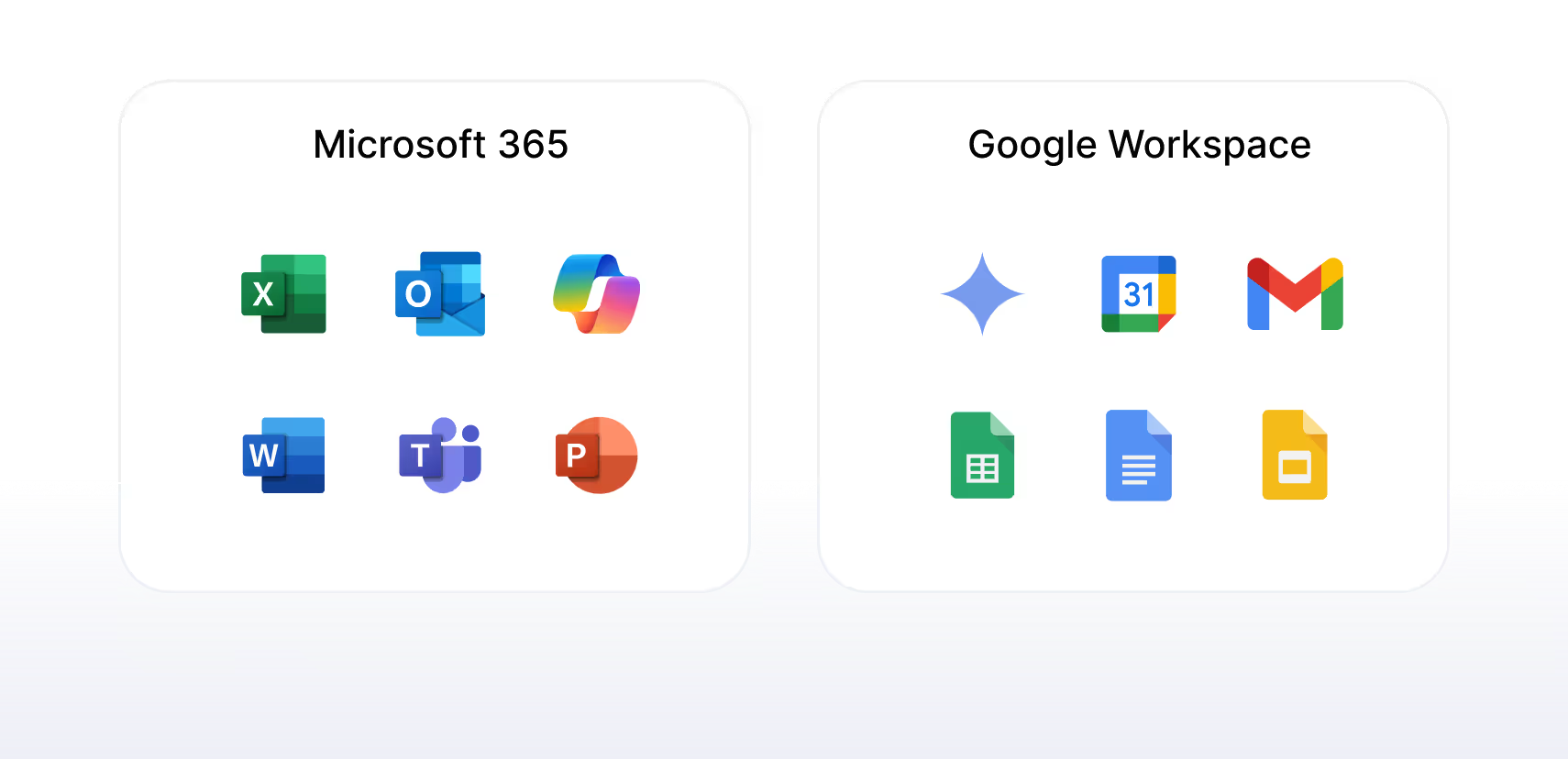
The M365 account is just one building block. deeploi automates the entire IT onboarding from a single source, from device management and software distribution to security configuration.
{{cta}}
FAQ
How many users can I create at once via CSV import?
The Microsoft 365 admin center allows a maximum of 249 users per CSV file. For larger or regular onboardings, you either split the data into several files, switch to PowerShell, or have the accounts created automatically from your HR system, for example with deeploi. Then the manual import disappears entirely.
Do I need IT knowledge to automate M365 account creation?
For the native route via PowerShell or the Microsoft API, yes, since you'll be writing and maintaining scripts. An HR-triggered platform like deeploi works without IT knowledge. You connect your HR system once, and from then on account creation runs automatically, even if nobody on the team is an IT professional.
Do I have to assign a license immediately when creating an account?
No, accounts can be created without a license, for example for pre-hire setups before the first day of work. However, UsageLocation is mandatory as soon as a license is assigned, otherwise Microsoft 365 silently blocks the assignment. With an automated platform like deeploi, this mandatory field is set right away, so the license assignment never runs into a dead end.
What happens to the Microsoft 365 account when someone leaves?
Manually, someone has to remember to remove the license, redirect the mailbox, and back up data, which is easily forgotten and leaves orphaned accounts behind. With deeploi, offboarding runs automatically. The license is deactivated, email forwarding is switched on, and business-critical data is handed over to the successor.

.png)